> ## Documentation Index
> Fetch the complete documentation index at: https://stagehand.readme-i18n.com/llms.txt
> Use this file to discover all available pages before exploring further.
# Interact with a website
> You can use Stagehand to intelligently interact with a website using AI
## Executing actions
Stagehand has an `act()` function that can be used to execute actions on a page using natural language. Here's an example of Stagehand to find jobs on LinkedIn:
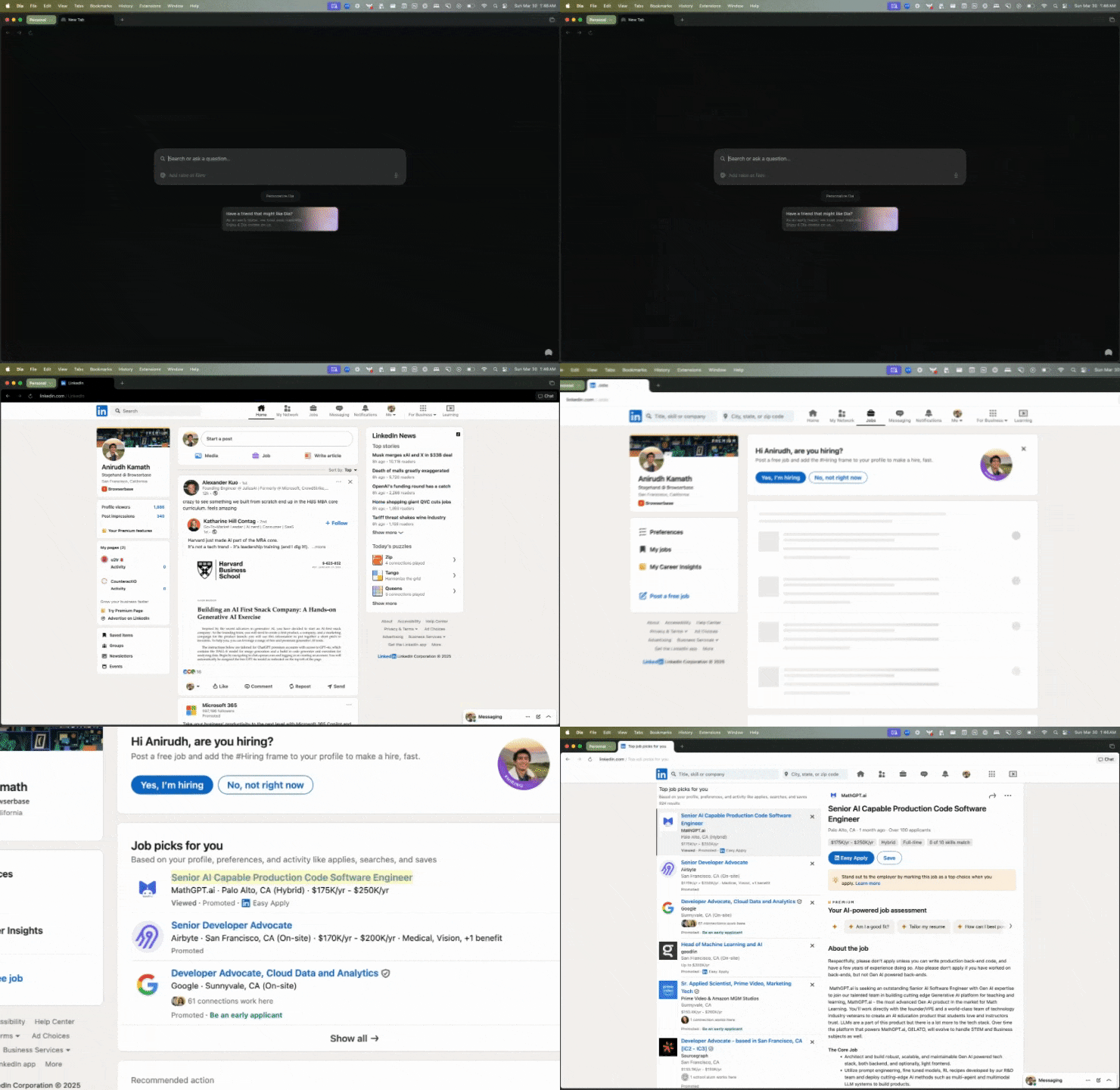 This workflow is as simple as the following lines of code:
```typescript TypeScript theme={null}
const page = stagehand.page
// Navigate to the URL
await page.goto("https://linkedin.com");
// Click on jobs menu selection
await page.act("click 'jobs'");
// Click on first posting
await page.act("click the first job posting");
```
```python Python theme={null}
page = stagehand.page
# Navigate to the URL
await page.goto("https://linkedin.com")
# Click on jobs menu selection
await page.act("click 'jobs'")
# Click on first posting
await page.act("click the first job posting")
```
The `page` object extends the Playwright page object, so you can use any of the [Playwright page methods](https://playwright.dev/docs/api/class-page) with it.
## Get structured data from the page
You can use `extract()` to get structured data from the page.
Here's an example of how to extract the job title from the job posting:
```typescript TypeScript theme={null}
const { jobTitle } = await page.extract({
instruction: "Extract the job title from the job posting",
schema: z.object({
jobTitle: z.string(),
}),
});
```
```python Python theme={null}
result = await page.extract("Extract the job title from the job posting")
```
Stagehand uses [Zod](https://zod.dev/) for TypeScript and [Pydantic](https://docs.pydantic.dev/) for Python to help you define the schema of the data to be extracted.
## Preview/Cache an action
Sometimes you want to preview an action before it's executed. You can do this by calling `page.observe()` before `act()`.
```typescript TypeScript theme={null}
const [action] = await page.observe("click 'jobs'");
console.log("Going to execute action:", action)
// You can add extra logic here to validate/cache the action
await page.act(action)
```
```python Python theme={null}
actions = await page.observe("click 'jobs'")
action = actions[0]
print("Going to execute action:", action)
# You can add extra logic here to validate/cache the action
await page.act(action)
```
`action` will be a JSON object that describes the action to be taken.
```TypeScript theme={null}
// action is a JSON-ified version of a Playwright action:
{
description: "The jobs link",
method: "click",
selector: "/html/body/div[1]/div[1]/a",
arguments: [],
}
```
For more on caching, see the [caching docs](/examples/caching).
## What actions can I take?
Stagehand maps natural language to [Playwright](https://playwright.dev) actions.
We generally support the following actions:
| Action | Description |
| ---------------- | -------------------------------------------------------------- |
| `scrollIntoView` | Scrolls an element into the visible area of the browser window |
| `scrollTo` | Scrolls to a specific percentage of the page height |
| `fill` | Fills in form fields with specified text |
| `type` | Types text into input fields (alias for `fill`) |
| `press` | Simulates pressing keyboard keys |
| `click` | Clicks on elements matching the specified selector |
| `nextChunk` | Scrolls the height of the viewport by 100% |
| `prevChunk` | Scrolls the height of the viewport by -100% |
Each of these actions can be triggered using natural language commands. For example:
```typescript TypeScript theme={null}
await page.act("scroll to the bottom of the page")
await page.act("fill in the username field with 'john_doe'")
await page.act("scroll the modal to the next chunk")
```
```python Python theme={null}
await page.act("scroll to the bottom of the page")
await page.act("fill in the username field with 'john_doe'")
await page.act("scroll the modal to the next chunk")
```
This workflow is as simple as the following lines of code:
```typescript TypeScript theme={null}
const page = stagehand.page
// Navigate to the URL
await page.goto("https://linkedin.com");
// Click on jobs menu selection
await page.act("click 'jobs'");
// Click on first posting
await page.act("click the first job posting");
```
```python Python theme={null}
page = stagehand.page
# Navigate to the URL
await page.goto("https://linkedin.com")
# Click on jobs menu selection
await page.act("click 'jobs'")
# Click on first posting
await page.act("click the first job posting")
```
The `page` object extends the Playwright page object, so you can use any of the [Playwright page methods](https://playwright.dev/docs/api/class-page) with it.
## Get structured data from the page
You can use `extract()` to get structured data from the page.
Here's an example of how to extract the job title from the job posting:
```typescript TypeScript theme={null}
const { jobTitle } = await page.extract({
instruction: "Extract the job title from the job posting",
schema: z.object({
jobTitle: z.string(),
}),
});
```
```python Python theme={null}
result = await page.extract("Extract the job title from the job posting")
```
Stagehand uses [Zod](https://zod.dev/) for TypeScript and [Pydantic](https://docs.pydantic.dev/) for Python to help you define the schema of the data to be extracted.
## Preview/Cache an action
Sometimes you want to preview an action before it's executed. You can do this by calling `page.observe()` before `act()`.
```typescript TypeScript theme={null}
const [action] = await page.observe("click 'jobs'");
console.log("Going to execute action:", action)
// You can add extra logic here to validate/cache the action
await page.act(action)
```
```python Python theme={null}
actions = await page.observe("click 'jobs'")
action = actions[0]
print("Going to execute action:", action)
# You can add extra logic here to validate/cache the action
await page.act(action)
```
`action` will be a JSON object that describes the action to be taken.
```TypeScript theme={null}
// action is a JSON-ified version of a Playwright action:
{
description: "The jobs link",
method: "click",
selector: "/html/body/div[1]/div[1]/a",
arguments: [],
}
```
For more on caching, see the [caching docs](/examples/caching).
## What actions can I take?
Stagehand maps natural language to [Playwright](https://playwright.dev) actions.
We generally support the following actions:
| Action | Description |
| ---------------- | -------------------------------------------------------------- |
| `scrollIntoView` | Scrolls an element into the visible area of the browser window |
| `scrollTo` | Scrolls to a specific percentage of the page height |
| `fill` | Fills in form fields with specified text |
| `type` | Types text into input fields (alias for `fill`) |
| `press` | Simulates pressing keyboard keys |
| `click` | Clicks on elements matching the specified selector |
| `nextChunk` | Scrolls the height of the viewport by 100% |
| `prevChunk` | Scrolls the height of the viewport by -100% |
Each of these actions can be triggered using natural language commands. For example:
```typescript TypeScript theme={null}
await page.act("scroll to the bottom of the page")
await page.act("fill in the username field with 'john_doe'")
await page.act("scroll the modal to the next chunk")
```
```python Python theme={null}
await page.act("scroll to the bottom of the page")
await page.act("fill in the username field with 'john_doe'")
await page.act("scroll the modal to the next chunk")
```