> ## Documentation Index
> Fetch the complete documentation index at: https://stagehand.readme-i18n.com/llms.txt
> Use this file to discover all available pages before exploring further.
# Browserbase MCP Server Setup
> Add the Browserbase MCP Server to Claude
## Quick Installation
One-click installation directly in Cursor with pre-configured settings
We support multiple transport methods for our MCP server: STDIO and SHTTP. We recommend using SHTTP with our remote hosted URL to take advantage of the server at full capacity.
## Prerequisites
Get your Browserbase API key and project ID from the [Browserbase Dashboard](https://www.browserbase.com/overview).
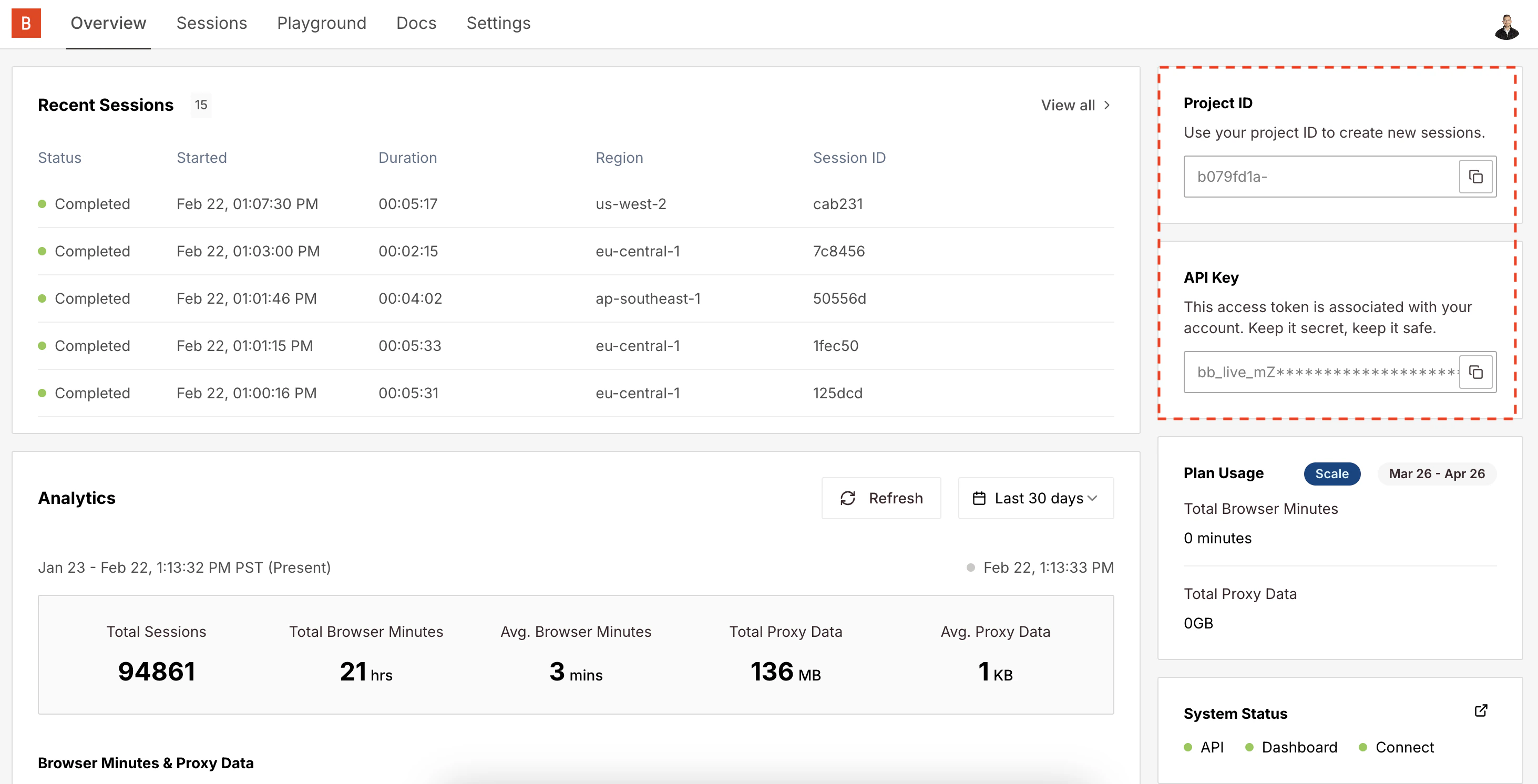 Then copy your API Key and Project ID directly from the input.
## Installation Methods
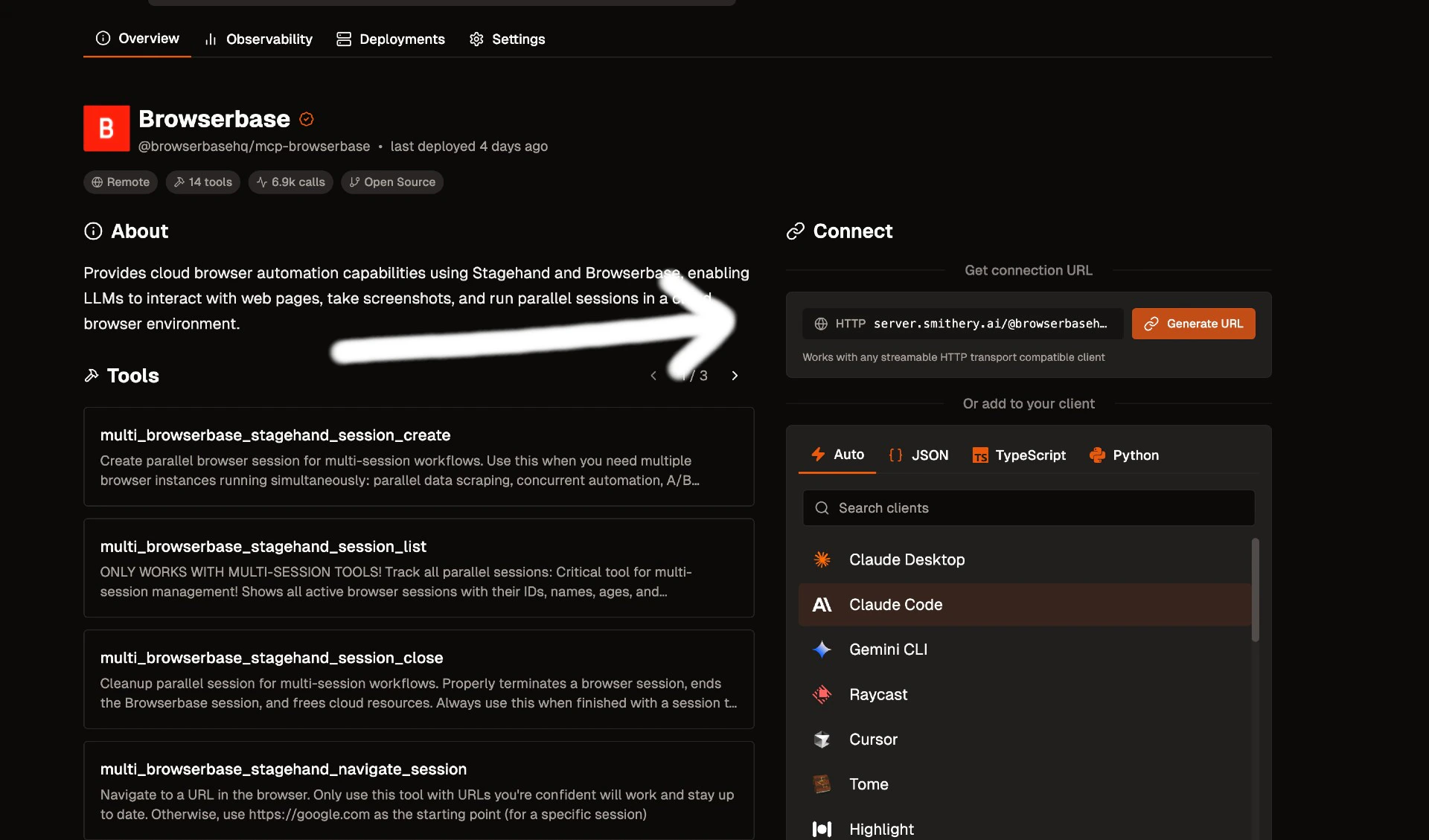
Go to [smithery.ai](https://smithery.ai/server/@browserbasehq/mcp-browserbase) and enter your API keys and configuration to get a remote hosted URL.
Then copy your API Key and Project ID directly from the input.
## Installation Methods
Go to [smithery.ai](https://smithery.ai/server/@browserbasehq/mcp-browserbase) and enter your API keys and configuration to get a remote hosted URL.
 ```json Smithery theme={null}
{
"mcpServers": {
"browserbase": {
"url": "your-smithery-url.com"
}
}
}
```
When using our remote hosted server, we provide the LLM costs for Gemini, the [best performing model](https://www.stagehand.dev/evals) in [Stagehand](https://www.stagehand.dev).
The easiest way to get started locally is using our NPM package.
If you would like to use a different model, you have to pass the model name and keys in the args. More info [here](https://docs.browserbase.com/integrations/mcp/configuration).
Go into your MCP Config JSON and add the Browserbase Server:
```json Claude Desktop theme={null}
{
"mcpServers": {
"browserbase": {
"command": "npx",
"args": ["@browserbasehq/mcp"],
"env": {
"BROWSERBASE_API_KEY": "your_api_key",
"BROWSERBASE_PROJECT_ID": "your_project_id",
"GEMINI_API_KEY": "your_gemini_api_key"
}
}
}
}
```
That's it! Reload your MCP client and Claude will be able to use Browserbase.
For local development or customization, you can run the server locally.
```bash theme={null}
# Clone the Repo
git clone https://github.com/browserbase/mcp-server-browserbase.git
cd mcp-server-browserbase
# Install the dependencies and build the project
npm install && npm run build
```
You can run locally using either STDIO or Streamable HTTP (SHTTP).
Add the following to your MCP Config JSON file:
```json theme={null}
{
"mcpServers": {
"browserbase": {
"command": "node",
"args": ["/path/to/mcp-server-browserbase/cli.js"],
"env": {
"BROWSERBASE_API_KEY": "your_api_key",
"BROWSERBASE_PROJECT_ID": "your_project_id",
"GEMINI_API_KEY": "your_gemini_api_key"
}
}
}
}
```
First, run the server:
```bash theme={null}
node cli.js --port 8931
```
Then add this to your MCP Config JSON file:
```json theme={null}
{
"mcpServers": {
"browserbase": {
"url": "http://localhost:8931/mcp",
"env": {
"BROWSERBASE_API_KEY": "your_api_key",
"BROWSERBASE_PROJECT_ID": "your_project_id",
"GEMINI_API_KEY": "your_gemini_api_key"
}
}
}
}
```
Reload your MCP client and you should be good to go!
## Verify Installation
Restart/refresh your Claude Client app and you should see the tools available by clicking the 🔨 icon.
Get started using our MCP Server by asking Claude to navigate to any page and see your Browserbase Browser in action on the [dashboard](https://www.browserbase.com/sessions).
Try asking Claude: "Navigate to google.com and take a screenshot"
## Further Reading
Learn more about the MCP protocol
Explore Browserbase features and capabilities
Get help from our support team
```json Smithery theme={null}
{
"mcpServers": {
"browserbase": {
"url": "your-smithery-url.com"
}
}
}
```
When using our remote hosted server, we provide the LLM costs for Gemini, the [best performing model](https://www.stagehand.dev/evals) in [Stagehand](https://www.stagehand.dev).
The easiest way to get started locally is using our NPM package.
If you would like to use a different model, you have to pass the model name and keys in the args. More info [here](https://docs.browserbase.com/integrations/mcp/configuration).
Go into your MCP Config JSON and add the Browserbase Server:
```json Claude Desktop theme={null}
{
"mcpServers": {
"browserbase": {
"command": "npx",
"args": ["@browserbasehq/mcp"],
"env": {
"BROWSERBASE_API_KEY": "your_api_key",
"BROWSERBASE_PROJECT_ID": "your_project_id",
"GEMINI_API_KEY": "your_gemini_api_key"
}
}
}
}
```
That's it! Reload your MCP client and Claude will be able to use Browserbase.
For local development or customization, you can run the server locally.
```bash theme={null}
# Clone the Repo
git clone https://github.com/browserbase/mcp-server-browserbase.git
cd mcp-server-browserbase
# Install the dependencies and build the project
npm install && npm run build
```
You can run locally using either STDIO or Streamable HTTP (SHTTP).
Add the following to your MCP Config JSON file:
```json theme={null}
{
"mcpServers": {
"browserbase": {
"command": "node",
"args": ["/path/to/mcp-server-browserbase/cli.js"],
"env": {
"BROWSERBASE_API_KEY": "your_api_key",
"BROWSERBASE_PROJECT_ID": "your_project_id",
"GEMINI_API_KEY": "your_gemini_api_key"
}
}
}
}
```
First, run the server:
```bash theme={null}
node cli.js --port 8931
```
Then add this to your MCP Config JSON file:
```json theme={null}
{
"mcpServers": {
"browserbase": {
"url": "http://localhost:8931/mcp",
"env": {
"BROWSERBASE_API_KEY": "your_api_key",
"BROWSERBASE_PROJECT_ID": "your_project_id",
"GEMINI_API_KEY": "your_gemini_api_key"
}
}
}
}
```
Reload your MCP client and you should be good to go!
## Verify Installation
Restart/refresh your Claude Client app and you should see the tools available by clicking the 🔨 icon.
Get started using our MCP Server by asking Claude to navigate to any page and see your Browserbase Browser in action on the [dashboard](https://www.browserbase.com/sessions).
Try asking Claude: "Navigate to google.com and take a screenshot"
## Further Reading
Learn more about the MCP protocol
Explore Browserbase features and capabilities
Get help from our support team